A webpage of one’s own
Facilitator
Here it might be nice to take a collective moment to explain what we have done: the server is live but we are simply accessing the webpage file from the nginx folder locally. This is why it’s called “localhost”.
Now that our server is live, let’s understand what we are seeing. When we open a website in the browser, we are actually getting a file from the web-server’s folder on that computer.
Essentially, a website is just a folder made of different file types on a remote computer.
Usually the main file composing a webpage is called index.html. index because it’s a list of all the content of the page, but also all the external resources needed to display the page, such as images, videos, fonts, etc. HTML (Hypertext Mark-up Language) is the programming language used for webpages and the main file format. There are also other languages:
- HTML is made to structure content and give it hierarchy.
- CSS is for styles: the layout appearance of our webpage (colour, size, creating columns, etc.)
- Javascript (
.js) is for interactivity: animating and toggling buttons, dropdown, get remote content, etc.
Facilitator
The explanation above could be demonstrated by making notes on a white board or hooking up a laptop to a beamer and opening a website’s developer tools: right click > view (page) source. An other tab opens with the HTML file of that page.
Our custom webpage
Finding our webpage
Let’s locate our webpage on our phone. We will navigate through folders using Termux. We use the command cd path/to/folder/ to get to our website folder, created by our webserver. cd stands for “change directory” (directory is another word for folder).
- Type + enter
cd $PREFIX/share/nginx/html
- Now you want to list what is in this folder, using
ls, which stands for “list”.
ls
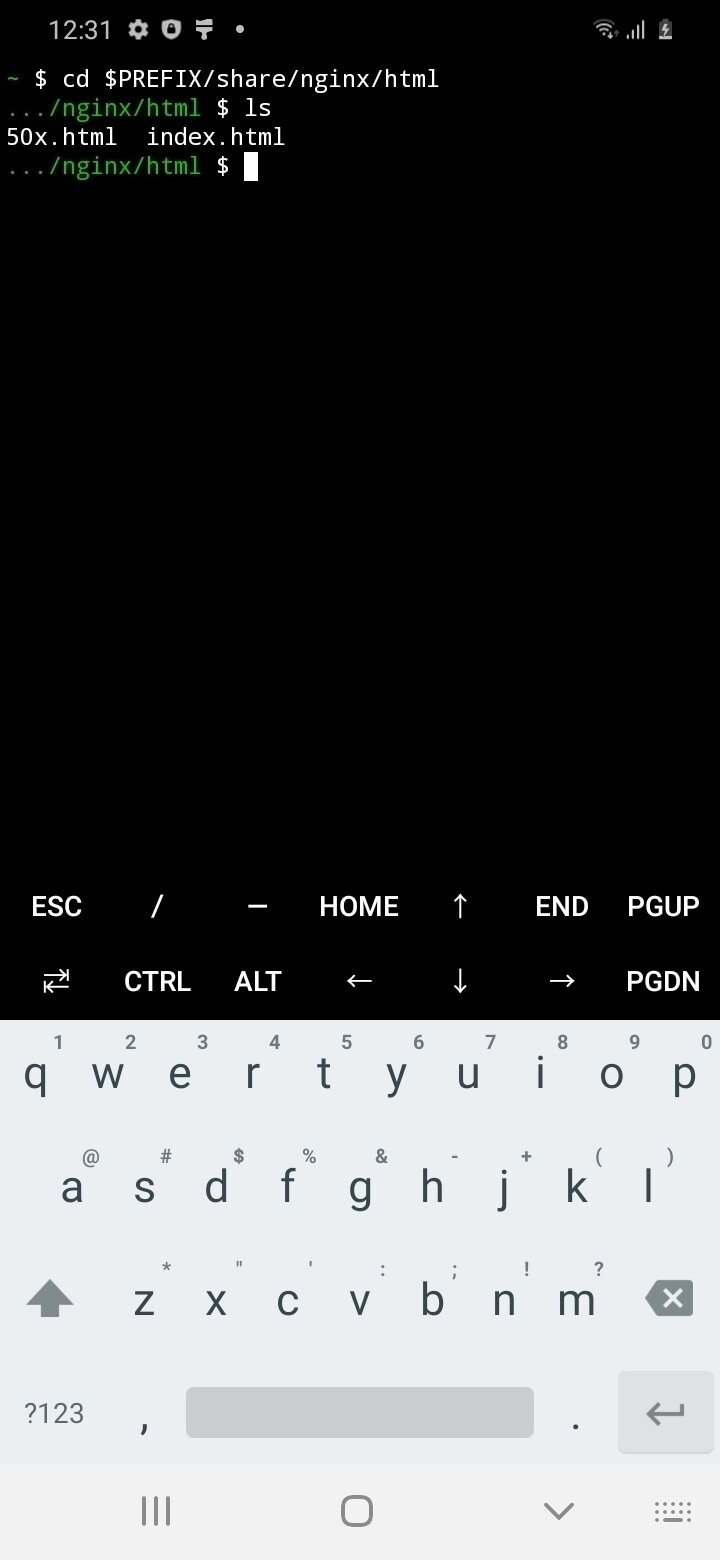
- You should see 2 files:
index.htmland50x.html.index.htmlis the main page while50x.htmldisplays if there is a specific error.
Note
That means our index.htmlfile is in the folder html, which is inside the folder nginx, which is inside share, etc.
folder location
$PREFIX/share/nginx/htmlis an alias name for the path, a shortcut. For the full path to get to our webpage location is –> /data/data/com.termux/files/usr/share/nginx/html/
Viewing our webpage.
index.html is the webpage we see in our phone’s browser. Let’s open it.
- We use the command
nano file-name.extension. “nano” is a very basic text editor in the terminal.
nano index.html
- We have opened the html file in the terminal. Similar to opening a .docx file in Office.
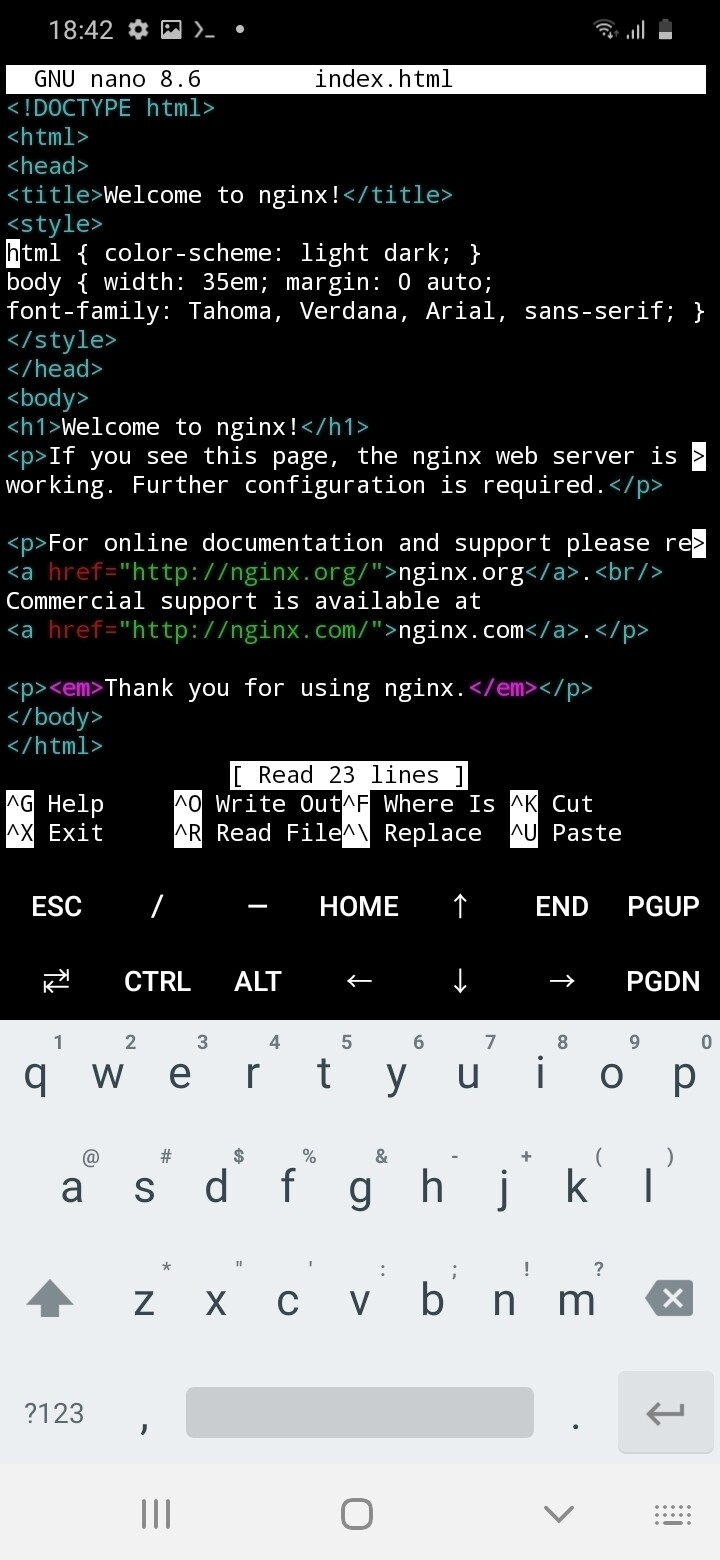
   <!DOCTYPE html>
   <html>
   <head>
   <title>Welcome to nginx!</title>
   <style>
   html { color: dark; }
   body { width: 35em; margin: 0 auto;
   font-family: Tahoma, Verdana, Arial, sans-serif; }
   </style>
   </head>
   <body>
      <h1>Welcome to nginx!</h1>
      <p>If you see this page, the nginx web server is successfully installed and
      working. Further configuration is required.</p>

      <p>For online documentation and support please refer to
          <a href="http://nginx.org/">nginx.org</a>.<br/>
      Commercial support is available at
          <a href="http://nginx.com/">nginx.com</a>.</p>
   </body>
   </html>
Facilitator
The information below should be explained while showing the html excerpt on a beamer or drawing on a white board. More info about HTML here.
HTML structures information with different value inside “elements” surrounded by <tags>: opening tag <p> and closing tag.</p>. Here we see several elements, that we find back on the rendered browser page. Inside the <body> element, there is an <h1> tag with a header, some <p> paragraphs, and some <a> links.
Inside the <head>, we find information regaring the page but that isn’t the content:
<title>...the title here...</title>: is the title that shows up in the browser tab.<style>color: blue;<style>is where we put CSS code to give information about the layout, color, etc.
Lazy typing
We can use the tab button (with 2 arrows) to autocomplete a file or folder name. start typing “inde” and tap the tab button, it will automatically fill in the end of your file name “index.html”
Editing our webpage.
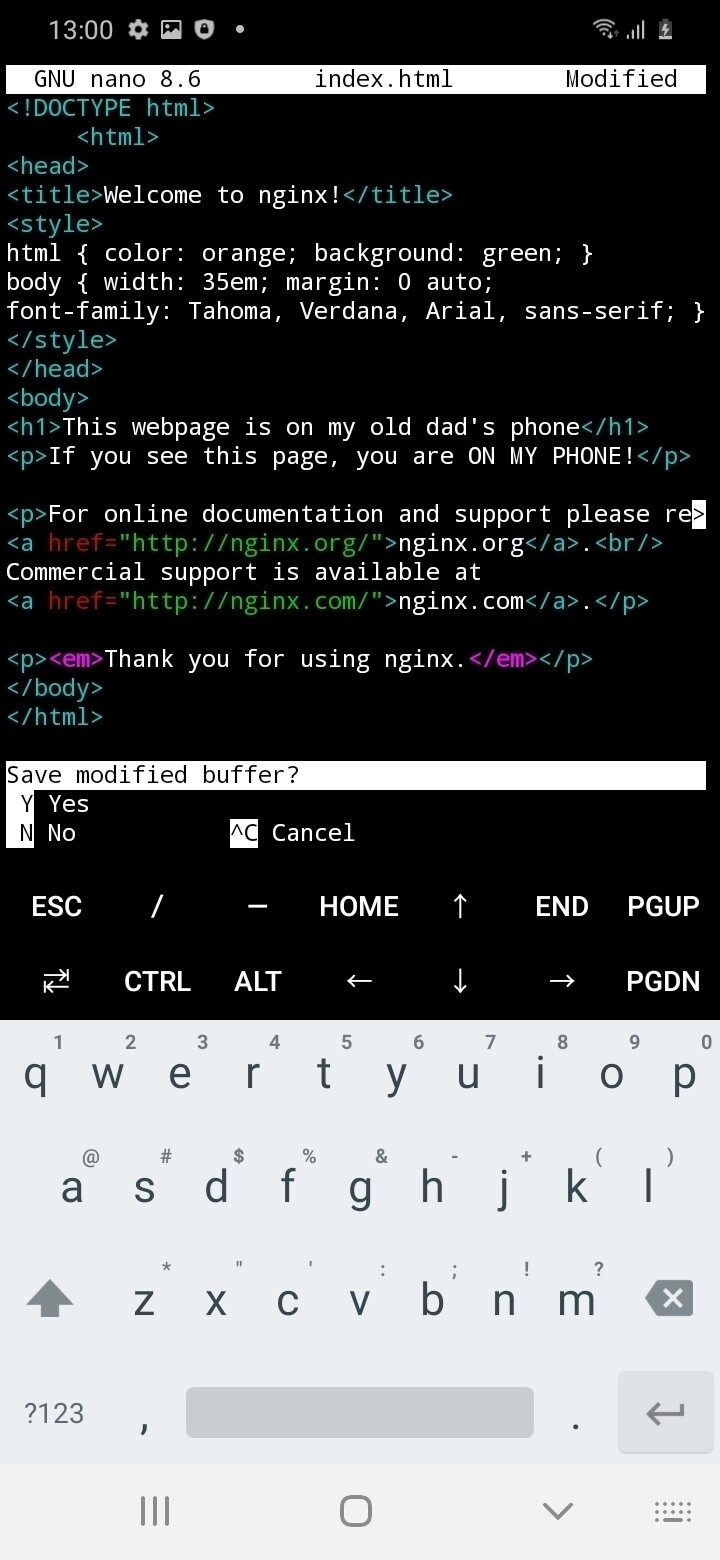
Let’s change some text inside the page.
Facilitator
This moment is creative, let every paarticipant choose their own text, their own color (look at CSS colors) in a few minutes.
- Using the < > arrows in nano, navigate and change some text.
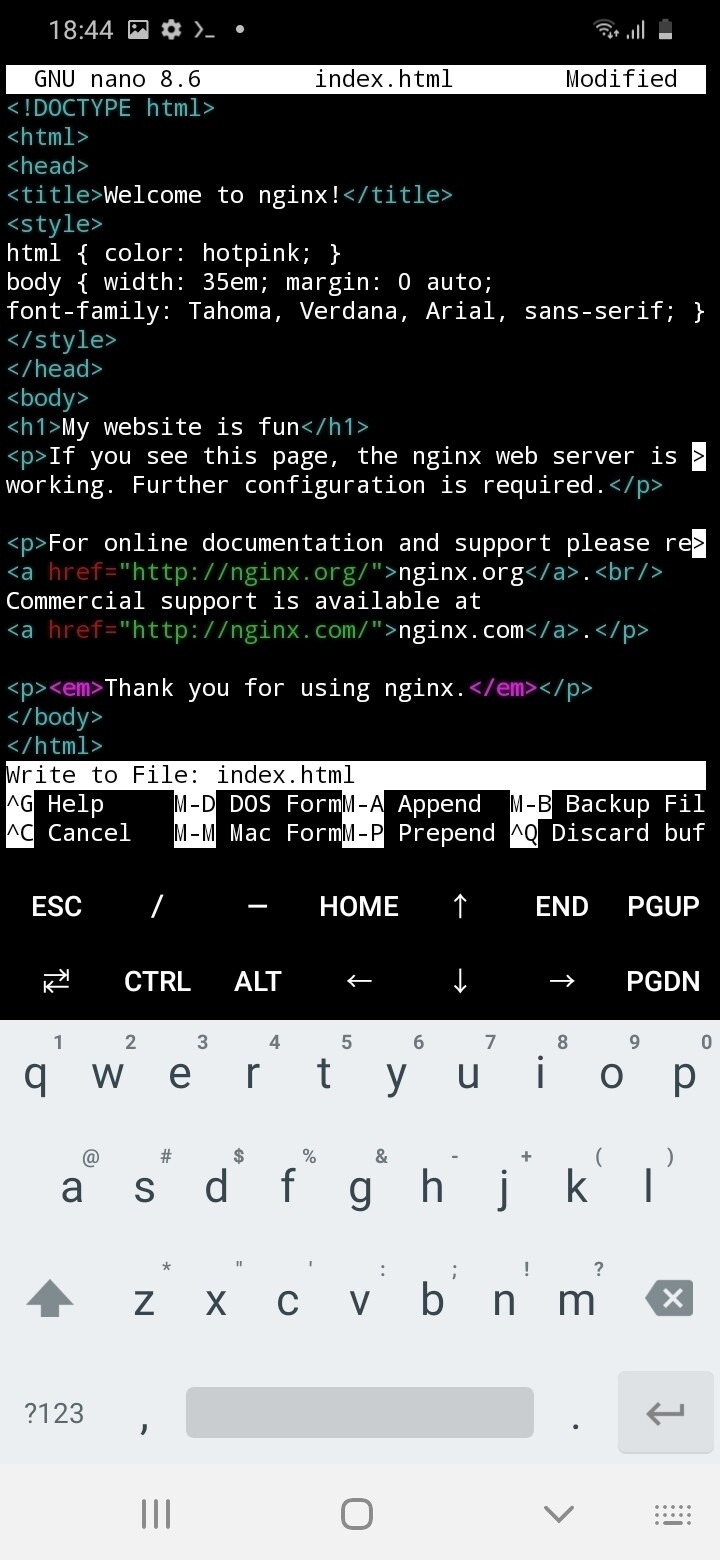
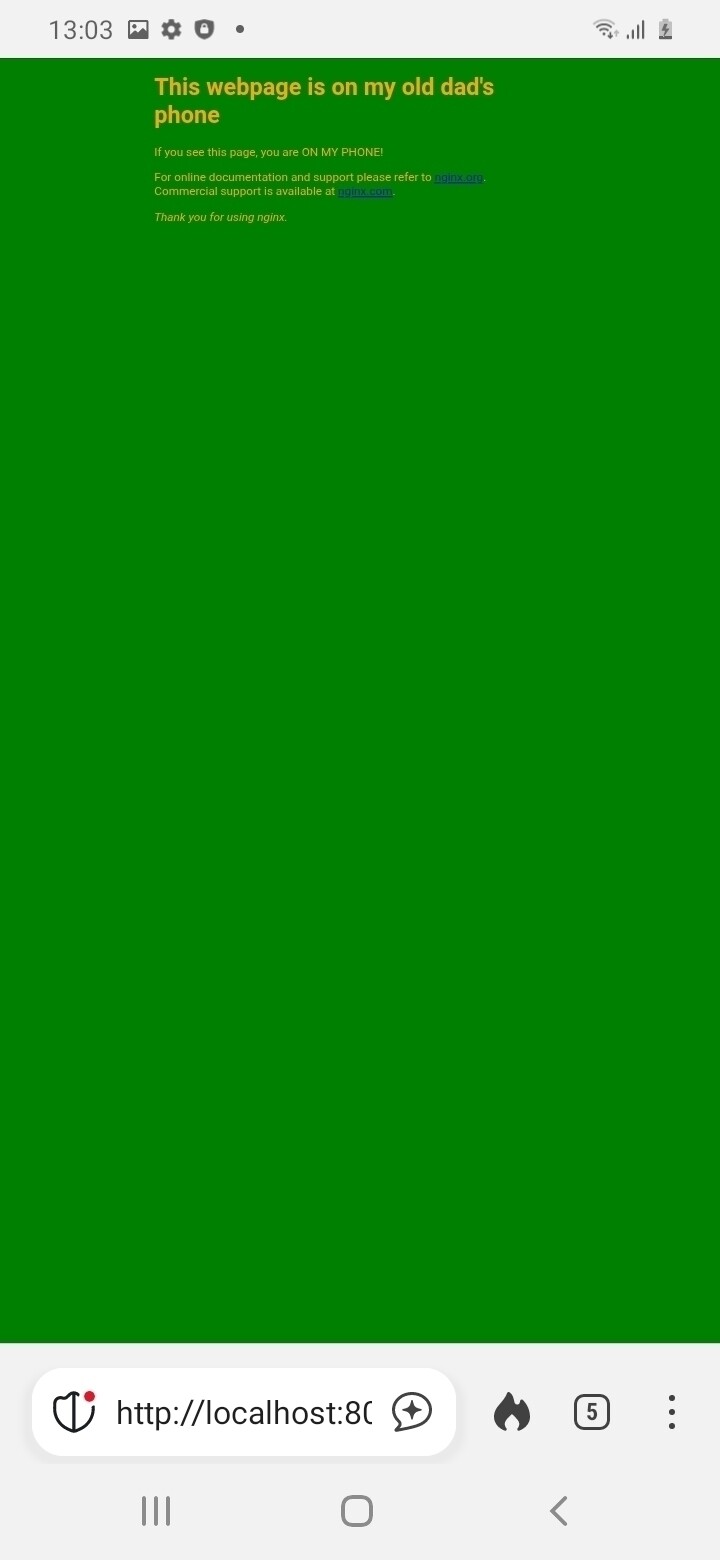
<h1>This webpage is on my old dad's phone</h1>
   <p>If you see this page, you are ON MY PHONE!</p>
Put me inside those tags
Make sure you respect HTML syntax. Elements should be within tags <h1>Your text here</h1>
- Change the text color in the
<style>
<style>
html { color: orange;
background: limegreen;
}
</style>
Styling with style
Make sure you respect CSS syntax. The style info should be within <style> Styling goes here and ONLY here<style>. Each declarations follows this structure: property : value;, for example: font-size: 20px;
HTML guides
More information on HTML on the official W3. Make you own websute guide, HTML section here, HTML webzine here
CSS guides
This great CSS resources by artist Doriane Timmermans: declarations.style or this video
Save, quit and reload
Now, let’s save and see our update:
- tap
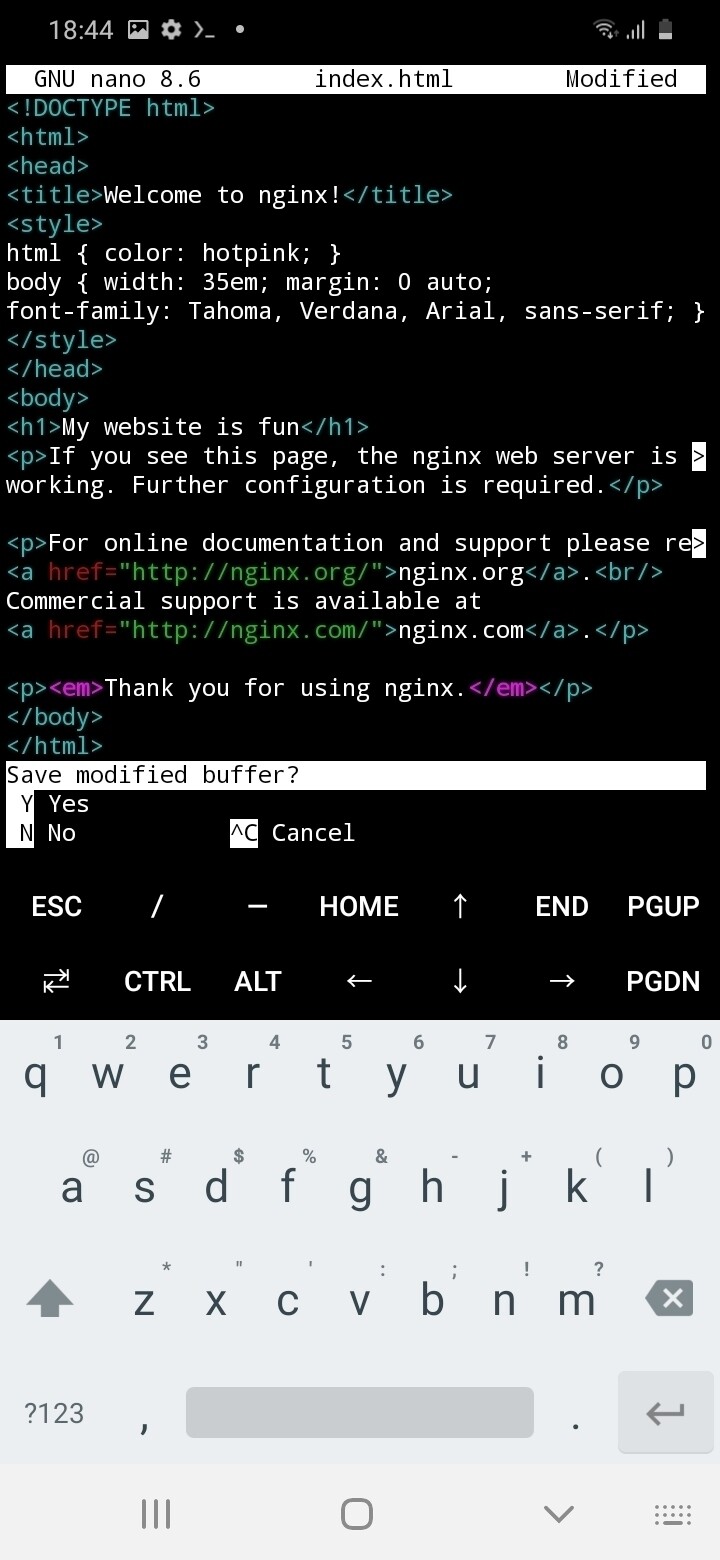
CTRLand typexin Termux’s keyboard. - You will get the question “Save modified buffer? [Y/n]”
- Type
yfor yes and press enter. (Typenoto quit without saving). - Go to your browser and refresh the page [http://localhost:8080/index.html].
Can’t see any changes?
If it’s not working, try the following:
1. Shut down the browser app, reopen it and try again.
2. Start nginx again, in Termux nginx -s stop, then nginx
3.Check that you have effectively made and save changes in the index html page: nano index.html
Nginx error
Here add nginx path routing issue fro samsungs (@ibo or Rein)
Ok, great! But that’s no so exciting is, it? I can view my webpage on my own web-server machine. I could also just open that file in the file manager, I don’t need to web for that. Actually, your webpage is already accessible by other clients (other computers), you just need to give them your IP address.