My phone as a web-server
Installing a web-server
Now that Termux is installed, we can give instructions/commands to our phone outside of the existing apps. To make a server, we need a webserver software, a package of code that can receive request from clients (other computers) and send back web content. We will use NGINX {‘Engine X’}, which is widely used.
Downloading NGINX and running it
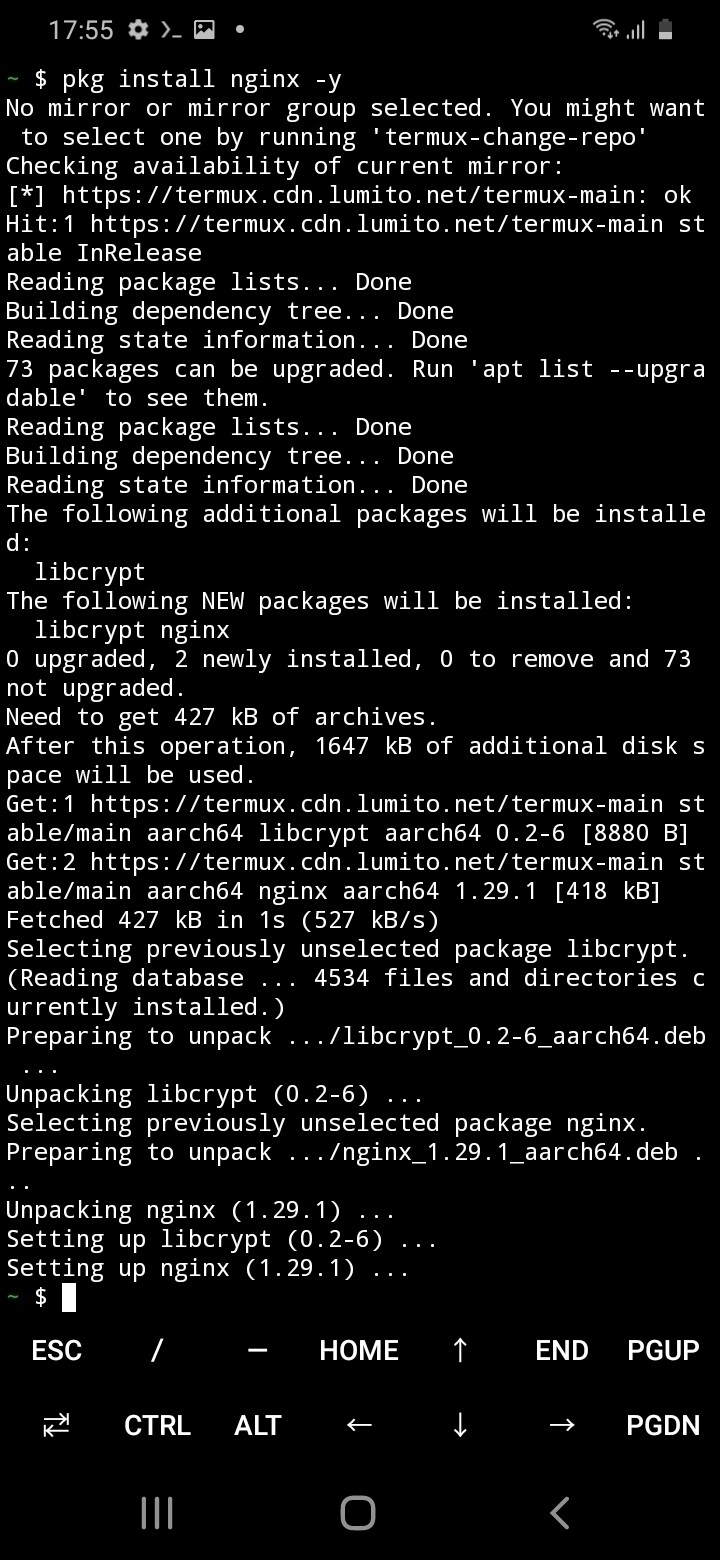
Open Termux on your phone, type + enter the following and wait:
- Install nginx
pkg install nginx -y
Why a -Y?
In the command above, we use the option -y. It stands for “Yes”, which means we want to accept all the configuration questions, instead of manually typing “Y” + enter for each prompt.
- Start-up NGINX with this command.
nginx
Although nothing shows up on your phone (except if you have an error), you server should now be running in the background!
Some helpful commands when working with NGINX
- Stop the server;
nginx -s stop - Refresh the server (its contents):
nginx -s reload - Find help
nginx -h
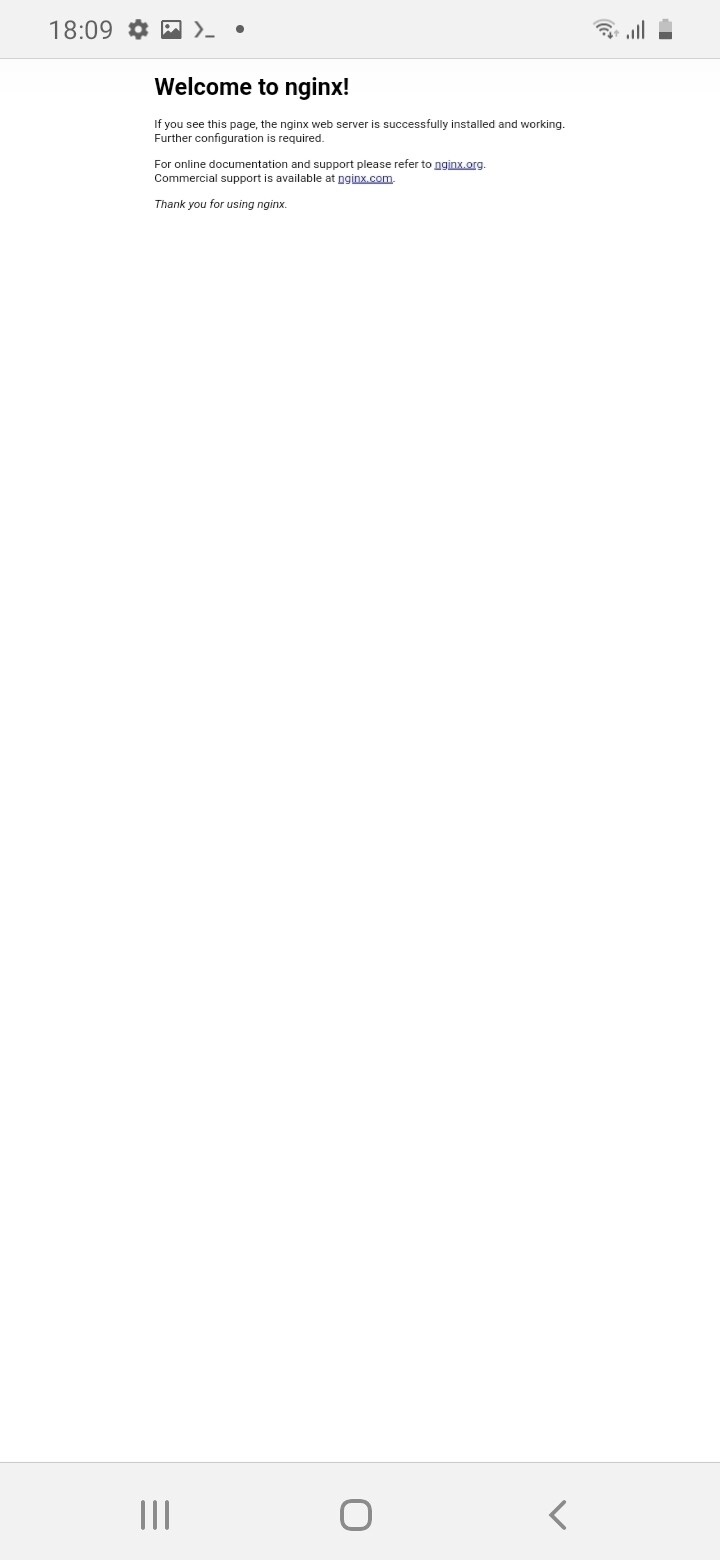
Is my server serving?
To check if you server is running, open your browser app, and type the following into the search bar: <http://localhost:8080> and press enter. You should see the NGINX default page pop-up saying “Welcome to nginx!”
Now, let’s customize this default webpage.
common mistakes
- I didn’t add http:// in front of
localhost:8080 - I used https instead of http
- http://127.0.0.1:8080 will also work!